Dashboard
Overview
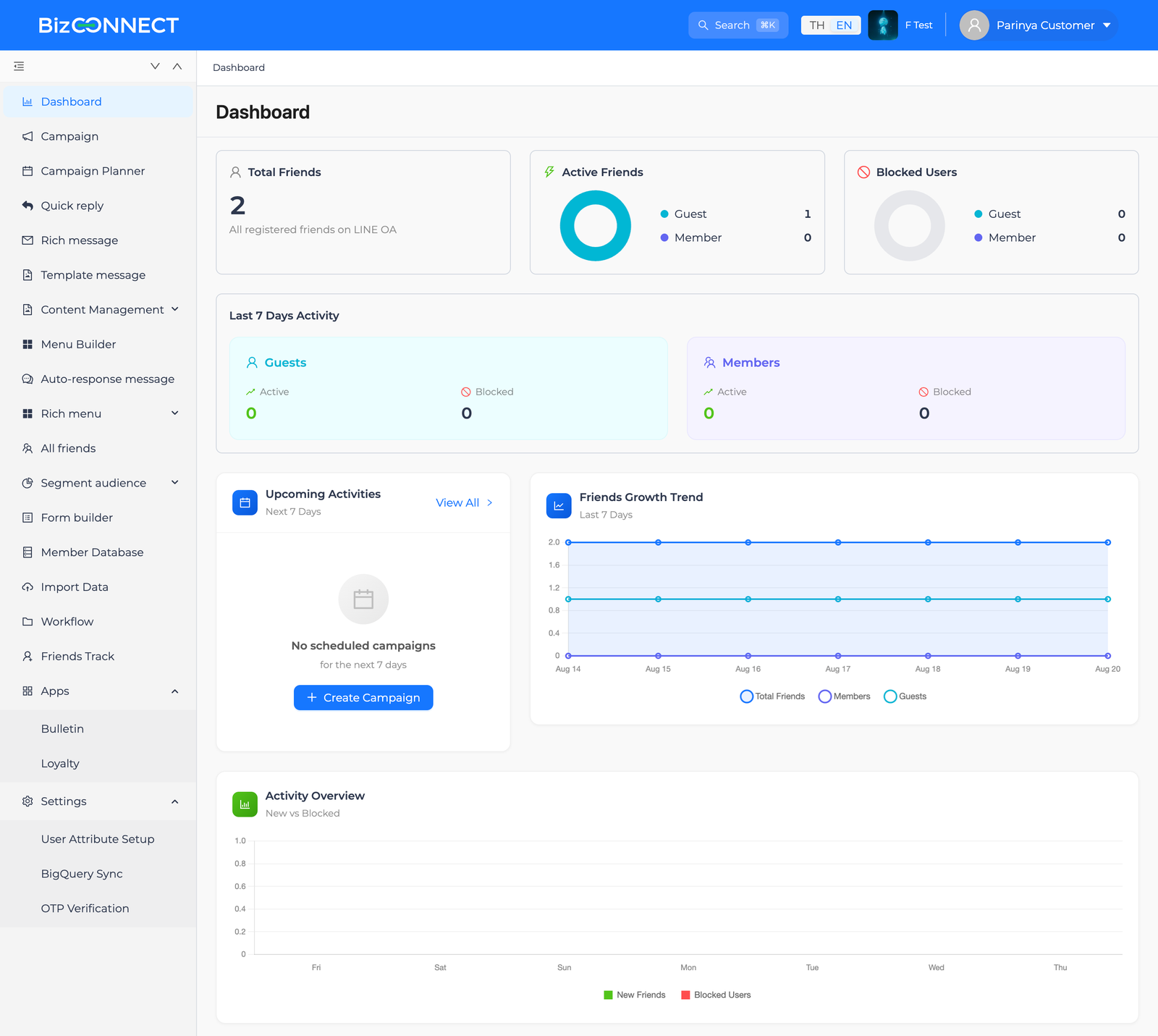
Dashboard is the first screen an OA admin sees right after selecting the channel to work with. It's the go-to spot for checking the friend base at a glance — total count, the active split, and the blocked split — plus a 7-day trend and a list of campaigns already scheduled, before deciding what to do next in another menu.
Who uses it — anyone who passes the front-end "view dashboard" permission check (see the real mechanics of this check under Access control below — in practice this means every user who's logged in and has a LINE OA selected).
User journey
1. Open the Dashboard menu
Pick the LINE OA to work with from the top-right corner (the "F Test" badge in the screenshot) — the system lands on Dashboard automatically. You can also click Dashboard, the top item in the left menu, at any time.
2. Review the three summary cards at the top

- Total Friends — a large number showing the OA's cumulative friend count right now, with the caption "All registered friends on LINE OA."
- Active Friends — a donut chart splitting Guest vs. Member counts for people not currently blocked.
- Blocked Users — the same style of donut, but showing only blocked people, split by guest/member (if both groups are empty, it shows a grey ring with "No data").
3. Review the "Last 7 Days Activity" box

The Guests box (light cyan) and Members box (light purple) each show an Active and a Blocked number for the last 7 days. Numbers turn green with a + prefix when positive, and red when negative — see How the numbers are calculated below for an important nuance about this pair of figures, since it's easy to misread.
4. Review the "Upcoming Activities" card
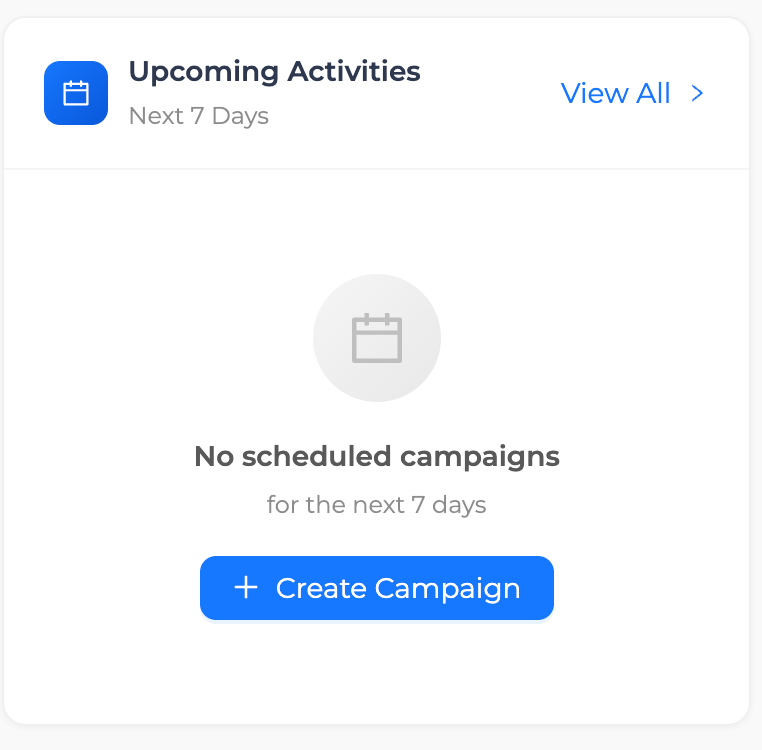
- This card pulls campaigns with status Scheduled, dated from today through the next 7 days, capped at 10 items, sorted by the nearest date first.
- Each row shows the date, campaign name, send time (labeled "Today" / "Tomorrow" or the actual date), and a status tag. Click a row to open that campaign's form directly in the Campaign menu.
- Click View All to see the full picture in Campaign Planner.
- If nothing is scheduled (as in the screenshot), an empty state appears with a Create Campaign button that leads to the Campaign list page to start a new one.
5. Review the "Friends Growth Trend" chart
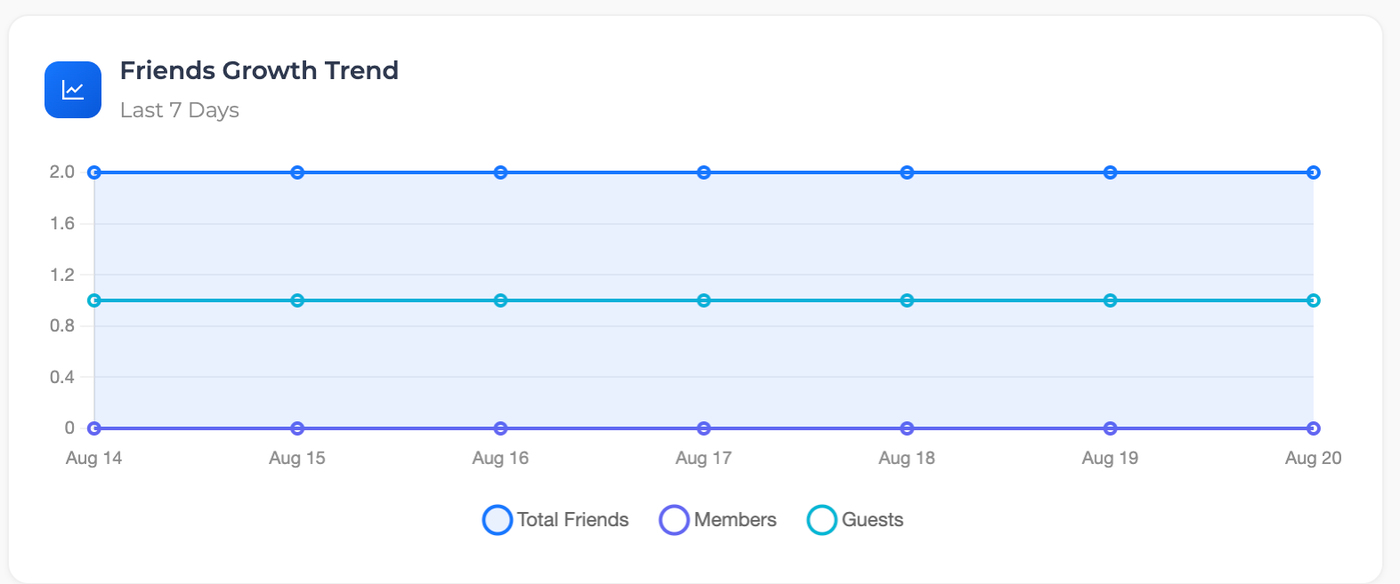
A line chart with 3 series (Total Friends, Members, Guests) over the last 7 days — the first and last day's figures are real, but every point in between is a straight-line estimate the browser computes itself, not that day's actual count, because the backend has no endpoint that returns true daily figures yet (confirmed under "Things to watch out for" below).
6. Review the "Activity Overview" chart
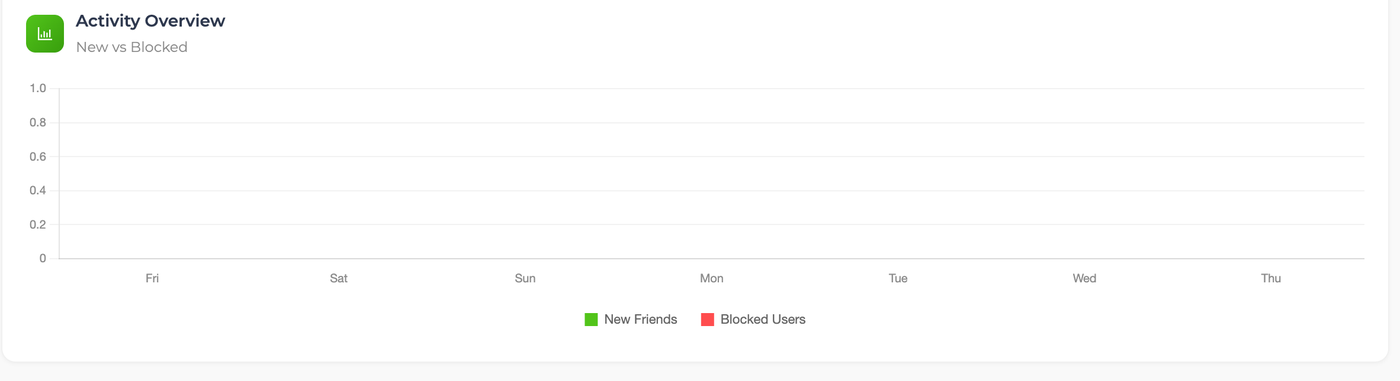
A bar chart comparing "new friends" against "blocked users" per day over the last 7 days (empty in the screenshot since the weekly total is 0). Just like the line chart above, the daily figures here are re-randomized every time the screen re-renders, only ever keeping the weekly total consistent with the real data.
How the numbers are calculated (verified against the source)
Confirmed from the internal/modules/dashboard/service.go module in line-management-cms-api-go — every count shares 3 base conditions against the line_user table: (1) line_oa_id matches the OA currently in use, (2) created_date is on or before the date being checked, (3) user_id IS NOT NULL (must already be linked to a real LINE user) — and soft-deleted rows are excluded automatically.
Worth knowing to read the figures correctly:
- The
memberandguestvalues the API returns are each group's cumulative total (both still-active and already-blocked combined) — not an active-only count. The Active Friends card is the one that subtracts the block count for you (member - totalBlockedMembers,guest - totalBlockedGuests); the raw API values still lump both groups together. blockGuest/blockMemberare a different metric fromtotalBlockedGuests/totalBlockedMembers— the latter pair counts by current follow status (follow = No) as of that date, whileblockGuest/blockMembercounts anyone whoseunfollow_datefalls on or before that date. It's this second pair that feeds the Blocked column on the "Last 7 Days Activity" card.- The "Active" figure on the Last 7 Days Activity box does not subtract the blocked count — it's simply the delta (
valueDiff= end-of-period minus start-of-period) of the rawmemberorguestvalue described above, which already lumps active and blocked together. That makes it a different number from the "active" figure on the Active Friends card up top — never compare the two side by side as if they meant the same thing. percentDiffis computed as(end value − start value) / (end value, or 1 if it's 0) × 100, though nothing on the current screen actually displays this value yet.
Related menus in this journey
- Campaign — the data source behind the "Upcoming Activities" card, and the destination of the Create Campaign button and any campaign row click.
- Campaign Planner — the destination of the View All button, a calendar view of that same set of campaigns.
Things to watch out for
- The line chart (Friends Growth Trend) and bar chart (Activity Overview) are not real daily data. The frontend code carries a comment saying exactly that:
"Note: Replace this with actual daily data when backend supports it"— the line chart linearly interpolates between the start-of-week and end-of-week totals, while the bar chart randomly redistributes the week's total delta across days on every render (so the daily figures keep shifting even when nothing real has changed). Only the weekly total is ever real. - A date-range filter exists in the code but isn't wired up yet — the Dashboard page already has the state and an
onChangeDatehandler ready indashboard.tsx, but there's no date-range picker on screen for anyone to use. In practice this page is always locked to the last 7 days. - A leftover "Top Rich Menu" feature exists in the source but never renders — files
TopRichMenu.tsx,dashboard-top-list.container.tsx, and agetTopRichMenu()function (calling/dashboard/top-rich-menu) all exist in the frontend, but none of them are imported anywhere in the actual Dashboard page tree. The backend doesn't even register that route — its own source comment confirms the endpoint "is disabled in TS" (i.e., was already turned off in the original system). It's dead code with zero effect on what a real user sees today. - If the friend counts look off, the root cause is usually the follower-sync process or a webhook that updates the
line_usertable, not the Dashboard page itself — this page is just a counter over data that already exists at the moment it's read.
Access control (verified against the source)
- Frontend — the Dashboard page is wrapped in a
PermissionGuardchecking theVIEWaction on thedashboardsubject (src/app/dashboard/page.tsx) before rendering anything. Fail that check and you see neither the menu item nor the page. - Backend — there's exactly one real endpoint,
GET /api/dashboard/total-friends, which must pass the global JWT middleware applied to every non-public route, and carries a policy annotation declaring it needsreadpermission on thedashboardmodule — but the middleware that checks that policy is deliberately written as a no-op. The source comment says so directly:"Enforcement disabled — allow all authenticated requests (TS parity)", preserving the original NestJS system's behavior of having this enforcement layer turned off system-wide. - The upshot: any user who's successfully logged in with a LINE OA bound to their token can always call this endpoint, regardless of their finer-grained permissions. Hiding the menu/page on the frontend only controls what an ordinary user sees — it isn't a real access barrier at the API layer.
Source file reference
Frontend (cms-web-2026)
src/app/dashboard/page.tsx— page entry point, permission wrappersrc/components/dashboard/dashboard.tsx,dashboard.container.tsx— page shell and the date-filter state (no UI wired to it yet)src/components/dashboard/dashboard-chart/—dashboard-chart.container.tsx(data fetching and calculations),dashboard-chart.tsx(layout),pie-card.tsx,score-card.tsxsrc/components/dashboard/charts/—friends-growth-chart.tsx,activity-bar-chart.tsx,doughnut-chart.tsxsrc/components/dashboard/upcoming-activities/— the container and UI for the upcoming-activities cardsrc/services/dashboard.service.ts— callsGET /dashboard/total-friends(and the unusedgetTopRichMenu)
Backend (line-management-cms-api-go)
internal/modules/dashboard/controller.go— registers the single route,GET /dashboard/total-friendsinternal/modules/dashboard/service.go— the counting and comparison logicinternal/modules/dashboard/dto.go,types.go— request/response shapesinternal/modules/auth/policy.go— confirmsCheckPoliciesis a system-wide no-op
See the documentation team's earlier technical write-up at Dashboard page